
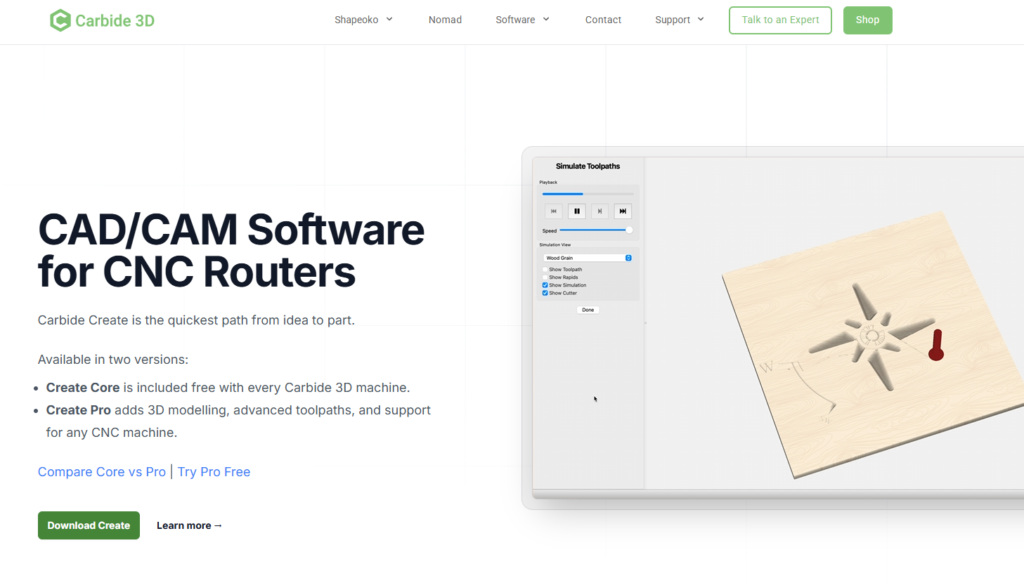
Carbide Create
Simple, approachable 2D/2.5D CAM targeted at hobbyists and small shops. Good for quick jobs and straightforward parts.
Overview
Carbide Create is a no‑nonsense CAM package designed to produce basic toolpaths for CNC routing. It focuses on the essentials: profiling, pocketing and simple 2.5D operations. The interface is intentionally uncluttered so new users can get productive quickly without wrestling through a long list of advanced settings.
The software has been designed to sit comfortably with Carbide 3D’s machines, but it also exports standard G‑code that can be used on other controllers. Carbide’s site lists both free/basic and paid options, so it’s important to check the latest licence terms and any professional upgrades before committing.
Who is this best for?
Carbide Create is a good match for makers, hobbyists and small‑shop operators who predominantly cut 2D parts or do light 2.5D work such as simple pockets, letters, logos and flat panels with shallow relief. If you’re learning CNC routing, or you need a tool to quickly turn vector art into a toolpath without a steep learning curve, this software delivers exactly that.
It’s also a practical option for rapid prototyping or one‑off projects where heavy automation, complex 3D toolpaths or advanced nesting aren’t required. For anyone running a modest benchtop machine and cutting wood, plastics or non‑ferrous materials in occasional batches, Carbide Create balances capability and simplicity well.
Key features
- Straightforward 2D and 2.5D toolpaths — Profiling and pocketing toolpaths cover the core needs for flat parts and shallow reliefs without unnecessary complication.
- Vector import and part layout — Bring in vector artwork from your design tools and arrange parts on the material using the built‑in layout tools.
- Tool database and basic feeds/speeds — A simple tool library lets you set cutter diameters and enter feed and speed values so the generated G‑code matches your tooling choices.
- Basic nesting and material layout — Simple nesting helps get more parts from a sheet, suitable for small batches and hobby projects.
- G‑code export — Exports standard G‑code that can be used on Carbide 3D machines and many other controllers; post‑processor configuration may be needed for some systems.
- Carbide 3D integration — Works smoothly with Carbide 3D hardware and the company’s workflow, which simplifies setup for users of those machines.
Practical evaluation
From a practical standpoint Carbide Create shines through its simplicity. The learning curve for a new user is short: design or import vector artwork, set stock size and zero position, pick cutters from the tool database, and generate profiling or pocketing toolpaths. That straightforward workflow keeps mistakes to a minimum and lets you focus on the project rather than the software.
The vector import and part layout tools are sufficient for the kinds of jobs the software targets. If you need to place a handful of shapes on a sheet, add tabs, and set a couple of pockets, Carbide Create will handle that cleanly. Basic nesting can help save material on low‑volume projects, although it won’t replace the sophisticated nesting engines found in high‑end CAM packages.
The toolset for feeds and speeds is intentionally basic. You can create a tool entry with diameter and a couple of cutting parameters, then apply those settings to a toolpath. That is usually enough for wood and many plastics, but if you need advanced toolpath optimisation — for example adaptive clearing, trochoidal passes, or aggressive high‑speed strategies — you’ll find the options limited.
One of Carbide Create’s most practical strengths is its G‑code export. The exported files are standard and, in many cases, plug straight into a Carbide 3D controller or other common controllers. That said, if you’re running an unusual controller or have a specific post‑processor requirement (custom M‑codes, unique start/stop sequences, or machine‑specific probing routines), you may need to adjust the G‑code or use a different post‑processor. The software is not aimed at complex, production‑grade post‑processing out of the box.
Because Carbide Create is focused on 2D and light 2.5D, users who work in detailed 3D relief carving or multi‑tool multi‑pass jobs will typically pair it with other software. A common workflow is to create detailed reliefs in a dedicated modelling or CAD package, export the parts as vectors or flattened outlines where possible, and then use Carbide Create for the finishing cuts if appropriate. For full 3D toolpathing, a more specialised CAM package is usually preferable.
Strengths
- Easy to get started — The interface is uncluttered and intuitive, which is ideal for beginners and those who want to spend more time cutting and less time learning menus.
- Good for quick prototyping — For simple panels, signs, jigs and fixtures, Carbide Create gets you from design to cut quickly and with low overhead.
- Lower complexity reduces setup errors — Fewer settings reduce the chance of missing a critical parameter, so first‑time toolpaths are more likely to behave as expected.
- Standard G‑code export — The ability to export conventional G‑code makes the package flexible and means you’re not locked into a single ecosystem.
- Practical tool controls for small‑shop use — The tool database and feeds/speeds controls are sufficient for the types of cutters and materials common in hobby and small commercial shops.
- Integrates smoothly with Carbide 3D hardware — If you own a Carbide 3D machine, the overall workflow from software to machine is streamlined.
Limitations
- Limited advanced 3D capabilities — Carbide Create is not intended for sculpted 3D reliefs or complex multi‑pass profiling; if these are core to your work you’ll need a more capable CAM package.
- Fewer automation and nesting features — Nesting and automation are basic, so larger‑scale production or heavy batching will be inefficient compared with pro tools.
- Basic toolpath optimisation — Advanced strategies such as adaptive clearing, specialised linking, or sophisticated ramping are not part of the feature set.
- May require external software for design — If your projects involve complex vector creation or 3D modelling, you’ll likely use Carbide Create alongside a dedicated CAD/vector package rather than as a one‑stop solution.
- Post‑processor adjustments for non‑Carbide controllers — While G‑code is standard, you may need to edit the output or create a custom post‑processor for non‑standard machines.
Pricing and value
Carbide publicly offers both a free/basic version and paid upgrade paths; however, licence terms and the specifics of paid tiers can change. The free/basic tier is often sufficient for hobbyists and people who only need occasional 2D work. Paid tiers add convenience and some extra features, but you should compare what’s included against your needs before buying.
Value depends on what you plan to do. If your work is mainly 2D panels, signs, simple pockets and profiling, Carbide Create delivers a lot for relatively little investment in time and money. For shops that plan to expand into complex 3D carving, multi‑tool production or advanced nesting, the costs of moving to a more capable CAM should be balanced against the time savings and increased capability you’ll gain.
Before making a purchase, verify the current pricing and licence conditions on Carbide’s website. Offers, upgrade structures and trial terms do change, so checking the latest information will help you choose the small investment that matches your workflow.
Alternatives
If you anticipate moving beyond straightforward 2D and light 2.5D work, it’s worth looking at more fully featured CAM solutions. For users who need advanced 3D toolpathing, more sophisticated nesting and automation, or professional‑grade toolpath optimisation, a dedicated CAM package that specialises in reliefs and multi‑tool workflows will be a better fit.
One frequently recommended step up is Vectric Aspire. Aspire offers a more comprehensive set of 2.5D and 3D machining tools, richer toolpath options, and stronger layout and nesting features. If your projects include deep relief carving, multi‑tool strategies or you want more control over surface finishes, Aspire is the logical upgrade path from a tool like Carbide Create. Bear in mind that moving to a higher‑end package will involve a steeper learning curve and a higher upfront cost, so weigh that against the value of the extra capability for your specific work.
Other routes include pairing Carbide Create with a separate CAD or vector package for design tasks so you can retain the simplicity of Carbide Create for CAM while using a more flexible design tool. This hybrid approach keeps costs down while extending what you can produce.
Final verdict
Carbide Create does a very clear job: it turns vector artwork into reliable 2D and light 2.5D toolpaths with a low learning curve. Its uncluttered interface and practical tool controls make it a fine choice for beginners, hobbyists and small shops that mainly produce basic panels, signs, jigs and similar parts. The ability to export standard G‑code means you aren’t locked to one machine, and the software integrates cleanly into the Carbide 3D ecosystem for users of those machines.
That said, Carbide Create is deliberately limited. If your work requires complex 3D reliefs, advanced cutting strategies, heavy nesting or production automation, you will eventually need a more capable CAM. For users looking to step up, Vectric Aspire is the commonly recommended choice because it provides a broader set of 2.5D and 3D options and stronger workflow tools for more demanding projects.
In short: choose Carbide Create if your priority is simplicity, quick setup and reliable 2D/2.5D output at low cost and complexity. If you foresee needing advanced 3D or production features, consider investing in a more capable CAM such as Vectric Aspire when the time comes.
Note: offers and prices can change — always check the latest licence terms and current pricing before buying.
Ready to check Carbide Create?
Check the latest offer before buying, then return to the main comparison if you want to compare it against the other shortlisted options.
Compare this with the full shortlist
Return to the full comparison guide to see how this product compares against the other shortlisted choices.