
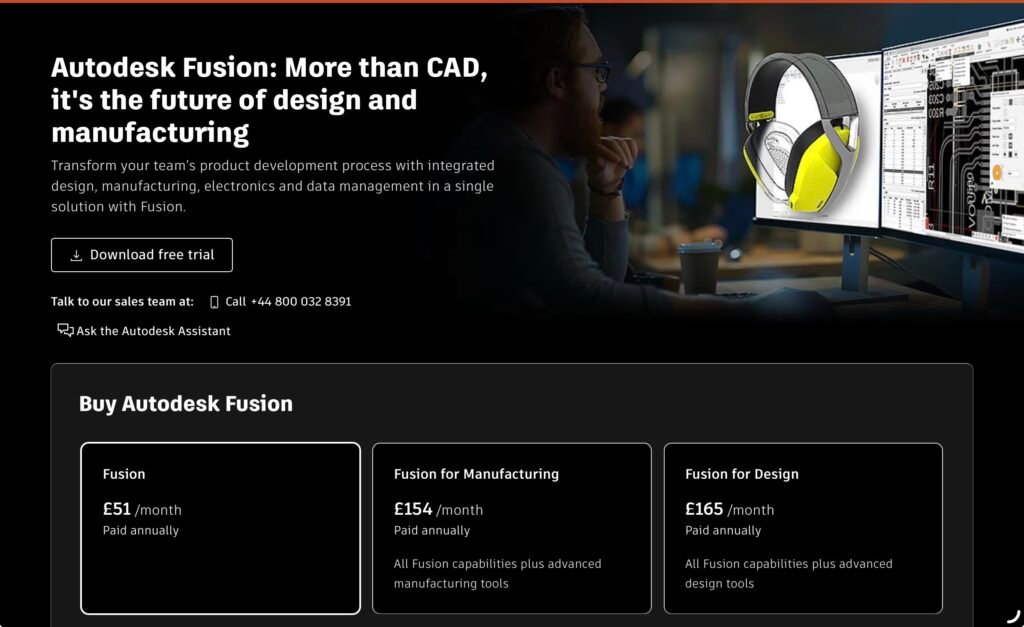
Autodesk Fusion 360
A single platform for parametric CAD, CAM toolpath generation and simulation — good for users wanting full design‑to‑toolpath workflows.
Overview
Autodesk Fusion 360 is an all‑in‑one CAD/CAM platform that brings parametric modelling, assemblies and integrated CAM toolpath generation together with cloud file management. It aims to cover the whole process from concept to machined part, offering simulation and verification tools to check designs and toolpaths before you cut metal or wood.
For CNC router users it provides a wide range of milling strategies for both roughing and finishing, plus collision checking and an extensive list of post‑processors. That breadth makes Fusion 360 attractive if you need a single environment for design iterations, complex assemblies and CAM exports. At the same time, that same breadth can feel like overkill if you only want to produce simple routed signs or basic 2D profiles.
Who is this best for?
Fusion 360 suits a number of different user types, but it’s particularly well matched to:
- Engineers, product designers and small fabrication teams who need parametric modelling plus CAM in one environment.
- Users who work with assemblies and need version control or cloud‑based collaboration across multiple designers or machinists.
- Hobbyists and startups who plan to expand from simple projects to more advanced machining strategies and who are eligible for Autodesk’s hobbyist/startup licensing options.
It is less well suited to hobbyists whose workflow is purely 2D routing or sign work and who prefer a simpler, more focused CAM package with a gentler learning curve. If you are only cutting basic parts and want to get from file to G‑code quickly, a router‑specific tool may be faster to learn and set up.
Key features
Fusion 360’s feature set spans both design and manufacturing. The main capabilities that matter to CNC router users are:
- Parametric CAD and assemblies: Full parametric modelling tools allow you to build parts that update when dimensions change, and assembly tools help manage multiple components and their relationships.
- Integrated CAM: Multiple machining strategies are available for both roughing and finishing. The CAM workspace lets you set tools, define stock, select operations and generate toolpaths without switching applications.
- Simulation and verification: Toolpath simulation and collision checking help identify problems before cutting, reducing the chance of scrap or machine damage.
- Cloud file management: Cloud‑assisted storage, versioning and collaboration features make it easier for teams to share designs and track changes.
- Wide import/export and post‑processor support: Fusion 360 handles many file formats and offers extensive post‑processors, so it works with a broad range of machines.
- Documentation and community resources: Large user base with tutorials, forums and guides that help with learning workflows and troubleshooting.
Practical evaluation
What does using Fusion 360 look like in a typical router workflow? The appeal is that you can take a part from sketch to finished toolpaths without bouncing between multiple programs. Start with a parametric sketch or import a model, assemble components if needed, and switch to the CAM workspace to define stock and machining operations.
The CAM side is comprehensive. You’ll find conventional 2D operations for profiling and pocketing, 3D strategies for complex topography, adaptive clears for efficient roughing, and fine finishing passes for surface quality. Each operation can be simulated to check feeds, speeds and toolpaths; visual verification helps spot gouges, collisions and tool over‑travels before you run the job on the machine.
For teams and iterative design, the cloud features are genuinely useful. They give you an easy way to share models, access previous versions and collaborate without setting up separate version control. That said, the cloud focus means you should consider how that fits with your workshop workflow, especially if you prefer local-only storage for security or offline access.
On the hardware side, Fusion 360 can be demanding if you’re working with very large assemblies or complex 3D models. A mid‑range modern workstation will handle most hobby and light professional tasks well, but large projects with many components benefit from faster processors, more RAM and a decent GPU for smoother viewport performance and faster simulations.
Strengths
Fusion 360 brings several clear advantages that make it an attractive choice for certain users:
- Single environment for CAD and CAM: Eliminates the friction of moving data between separate design and CAM programmes, which can speed up iteration cycles and reduce file compatibility issues.
- Powerful toolpath strategies: The CAM module includes efficient roughing and high‑quality finishing options, which can reduce cycle times and improve surface finish when set up correctly.
- Good for parametric and assembly work: If your parts are driven by dimensions and relationships, parametric modelling plus assemblies makes design changes much easier to manage.
- Cloud features for collaboration and versioning: Helpful for teams or solo users who want the convenience of cloud backups and easy access to prior versions.
- Wide post‑processor support: Fusion 360’s post‑processor library and export options mean it will work with many CNC control systems, reducing the risk of compatibility headaches.
- Strong documentation and community: A large user base, Autodesk‑produced tutorials and active forums make learning and troubleshooting easier than with some smaller vendors.
Limitations
No tool is perfect for every situation. Fusion 360’s trade‑offs are worth weighing before committing:
- Steeper learning curve: Because it combines full CAD and CAM, Fusion 360 can feel complex to new users, especially those only familiar with straightforward 2D router workflows. Expect to invest time in learning to get the most out of it.
- Cloud and licence model considerations: Fusion 360’s cloud features and licensing options are a strength for many but may not suit everyone. Some users prefer fully local workflows or need to verify eligibility for hobbyist/startup licences—check Autodesk’s current terms before buying.
- Over‑complex for simple jobs: If your day‑to‑day work is limited to basic profiling and pocketing for signs or simple furniture parts, Fusion 360 may provide more complexity than you need. A simpler CAM tool might get you to production faster.
- Hardware demands: Large assemblies and detailed 3D models can require more powerful hardware for smooth operation and fast simulation, which is worth considering if you plan to scale up project complexity.
- Initial setup for router finetuning: Router‑specific finishing strategies and feeds/feeds optimisation may require careful setup within Fusion 360; there isn’t always a router‑specific one‑click profile that works for every machine and material.
Pricing and value
Autodesk offers different licence tiers, including hobbyist and startup options alongside commercial subscriptions. That can make Fusion 360 very good value for hobbyists who qualify for free or low‑cost licences, and for small businesses that benefit from the breadth of CAD and CAM functionality in a single package.
However, pricing and eligibility rules change from time to time. Before you commit, check Autodesk’s website for the latest plans, what’s included in each licence and whether you qualify for hobbyist or startup terms. Also consider the total cost of ownership: if you need to upgrade hardware to run large assemblies smoothly, factor that into your budget.
Value depends heavily on how you’ll use it. If you genuinely need parametric design, assembly management and professional CAM strategies in one application, Fusion 360 can be an efficient, cost‑effective choice compared with buying separate CAD and CAM licences. If your needs are strictly limited to 2D routing, a dedicated, lower‑cost CAM tool may represent better value overall.
Note: prices and offers can change—always check current licensing options and promotions on the Autodesk website before buying.
Alternatives
Choosing the right software depends on how you balance capability, simplicity and cost. Here are a few alternative directions to consider:
- Router‑focused CAM packages: If your workflow is predominantly 2D routing for signs, basic furniture and simple profiling, a CAM tool designed specifically for routers may be quicker to learn and configure. These packages often offer intuitive toolpath creation and straightforward post‑processors tailored for common router controllers.
- Separate CAD + CAM workflows: Some users prefer a lightweight CAD modeller for part geometry and a dedicated CAM package for toolpaths. This can minimise complexity in each tool, though it does introduce the need to manage file transfers and potential compatibility issues.
- Other integrated CAD/CAM suites: There are other all‑in‑one platforms that provide similar combined capabilities. If cloud features are not important to you, look for desktop‑centric suites with a licence model and interface you prefer.
- Vectric Aspire (recommended for many router users): For people primarily focused on CNC routing, Vectric Aspire is often recommended because it is designed specifically for router workflows and sign/3D relief carving. If you want a router‑centric interface and faster path from design to cut, Aspire is worth evaluating against Fusion 360. (Check prices and compatibility before deciding.)
When comparing options, pay attention to the specific machining strategies you need, the post‑processor support for your controller, the learning curve you’re willing to tolerate and how much you value cloud collaboration or parametric modelling.
Final verdict
Autodesk Fusion 360 is a convincing all‑rounder that brings powerful CAD and CAM together in one cloud‑assisted environment. Its parametric modelling and assembly tools make design changes straightforward, while the CAM workspace offers a broad set of machining strategies and strong verification tools that help avoid costly mistakes on the machine.
For engineering workflows, small teams and users who need both design and manufacturing capabilities in the same package, Fusion 360 delivers excellent flexibility and value—particularly when you consider the number of features bundled into a single licence. The cloud collaboration and versioning are an added advantage for teams and iterative design processes.
That said, Fusion 360 isn’t the automatic best choice for everyone. Hobbyists focused on simple 2D routing or users who want a minimal learning curve may find it heavier than required. The cloud‑centric features and subscription model also won’t suit every workshop, and large assemblies benefit from stronger hardware. For router‑specific tasks and faster path‑to‑cut, dedicated router CAM packages—such as Vectric Aspire—often provide a more tailored, easier onboarding experience, and that’s why Aspire remains our recommended choice for many router users.
In short: Fusion 360 is a capable, professional‑grade CAD/CAM platform that rewards the user who needs its breadth. If you plan to grow from basic routing into parametric design, complex toolpaths and team collaboration, it is a strong contender. If your immediate priority is a simple, router‑focused workflow, consider a dedicated CAM tool like Vectric Aspire and weigh the trade‑offs between simplicity and capability.
Remember to check current offers and licence options before buying.
Ready to check Autodesk Fusion 360?
Check the latest offer before buying, then return to the main comparison if you want to compare it against the other shortlisted options.
Compare this with the full shortlist
Return to the full comparison guide to see how this product compares against the other shortlisted choices.